ai coding tools are now part of daily development work for many engineers, students, data analysts, and indie builders. Best choice depends less on which model sounds strongest and more on where you write code: IDE, terminal, browser, notebook, or hosted workspace.
Quick answer: Cursor is strong if you want an AI-first editor built around project-wide changes. GitHub Copilot is strong if you already work in VS Code, JetBrains, or GitHub-heavy workflows. Claude Code is useful for terminal-based work, long-context reasoning, and careful code explanation. Replit fits beginners, prototypes, and hosted app building. Tabnine fits teams that care about controlled code completion and deployment choices. ChatGPT is best as a flexible coding coach, debugging partner, and architecture explainer rather than a deep IDE-native coding environment.
Tool Stack Scout compares software by workflow fit, not hype. For more software categories, see Tool Stack Scout.
AI Coding Tools
Best AI coding tool depends on workflow: IDE-first developers should start with Copilot or Cursor, terminal-heavy developers should consider Claude Code, beginners should look at Replit, and teams should weigh governance, privacy, and editor support before speed claims.
Most developers do not need every AI coding assistant. They need one primary tool that fits daily coding, plus one general-purpose assistant for planning, learning, and reasoning through unfamiliar code.
For many professional developers, best stack is simple: IDE assistant for inline work, chat model for explanation, and code review discipline for anything that reaches production. AI can speed up boilerplate, tests, refactors, and debugging, but it can also create plausible code that fails edge cases.
What Are AI Coding Tools?
AI coding tools are software assistants that help developers write, understand, modify, test, and review code. They can appear as autocomplete inside an IDE, chat inside an editor, an agent in a terminal, a hosted browser workspace, or a general AI chatbot used for programming help.
Scope matters. Code completion suggests lines or blocks as you type. Code generation creates functions, scripts, tests, components, or migrations from prompts. Debugging tools explain errors and propose fixes. Refactoring tools reorganize code without changing intended behavior. Review tools scan pull requests, highlight risky changes, and suggest improvements.
Common Tasks AI Code Tools Handle
- Generate boilerplate for APIs, components, tests, scripts, and data pipelines.
- Complete code inside VS Code, JetBrains IDEs, or other supported editors.
- Explain unfamiliar functions, stack traces, logs, and dependency behavior.
- Suggest unit tests, integration tests, and edge cases.
- Refactor large files into smaller functions or modules.
- Translate code between languages or frameworks with review required.
- Draft documentation, commit messages, and pull request summaries.
Who Benefits Most From AI Coding Tools
Beginners benefit from explanation and guided examples. Professional developers benefit from faster implementation and test creation. Technical leads benefit from review support and architecture discussion. Data science teams benefit from notebook help, SQL generation, and pipeline debugging. Indie builders benefit from quick prototypes and deployment-friendly workflows.
Big caveat: AI coding assistants are not substitutes for engineering judgment. Treat generated code as draft code. Read it, test it, and check security-sensitive paths before merging.
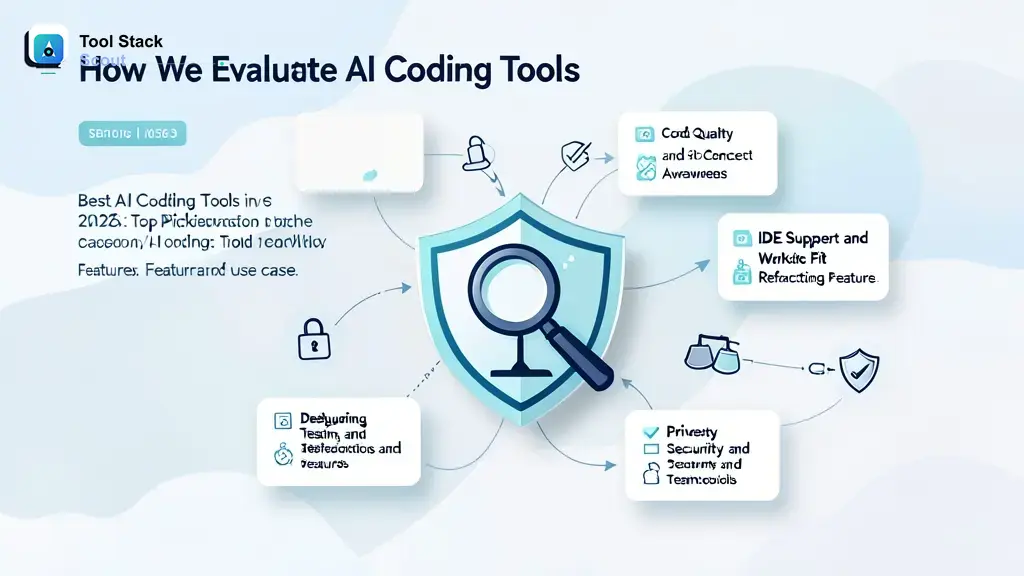
How We Evaluate AI Coding Tools
Good AI code tools should improve developer flow without hiding too much risk. Fast suggestions matter, but context quality, reviewability, and integration matter more for real projects.
Code Quality and Context Awareness
Best tools understand more than current line. They can use open files, repository structure, related functions, framework conventions, and test patterns. Strong context helps with multi-file refactors, meaningful tests, and bug fixes that do not break surrounding code.
IDE Support and Workflow Fit
Workflow fit decides adoption. If your team lives in VS Code, JetBrains, GitHub, terminal sessions, or browser workspaces, choose a tool that works there with minimal friction. Switching editors only for AI features can be worth it for some developers, but not for every team.
Debugging, Testing, and Refactoring Features
Autocomplete saves keystrokes. Debugging and refactoring save thinking time when handled well. Look for tools that can explain stack traces, inspect failing tests, propose small fixes, generate test cases, and preserve existing code style.
Privacy, Security, and Team Controls
Teams should review data handling, repository access, retention settings, admin controls, deployment options, and policy controls before rolling AI tools across private codebases. Regulated environments need more scrutiny than personal side projects.
| Tool | Best for | Why it stands out | Main trade-off |
|---|---|---|---|
| ai coding tools | Developers comparing broad AI-assisted coding workflows | Useful category for matching code completion, generation, debugging, and review to actual work | Too broad unless narrowed by editor, language, team controls, and project type |
| AI coding tools | Teams building a shortlist across IDE, terminal, browser, and repository workflows | Helps compare Cursor, Copilot, Claude Code, Replit, Tabnine, and similar assistants by fit | Feature claims change often, so current plan limits and integrations need review |
| AI code tools | Users focused on practical tasks like tests, bug fixes, snippets, and refactors | Best framing for choosing tools by job to be done instead of brand popularity | May miss team-level concerns like governance, security, and admin controls |
| AI coding assistant | Individual developers wanting daily help inside editor or terminal | Combines chat, completion, explanation, and generation in normal development flow | Quality depends heavily on prompt clarity, project context, and review discipline |
| code completion | Developers who want faster typing and inline suggestions | Low-friction productivity boost for repetitive code, common patterns, and local edits | Less helpful for architecture, debugging strategy, and large cross-file changes |
| code generation | Builders creating functions, tests, scripts, components, and prototypes from prompts | Can move quickly from intent to working draft, especially for familiar patterns | Generated output still needs testing, security review, and style cleanup |
Best AI Coding Tools at Glance
If you want a fast shortlist, start here. These are practical categories, not universal rankings.
- Best for beginners: Replit, because hosted coding, templates, and browser-based workflows reduce setup friction.
- Best for professional developers: GitHub Copilot or Cursor, depending on whether you prefer adding AI to existing IDEs or moving into an AI-first editor.
- Best for teams and enterprises: GitHub Copilot or Tabnine, with final choice based on admin controls, codebase policy, deployment preferences, and IDE stack.
- Best for terminal-heavy developers: Claude Code, especially when long-context explanation and command-line flow matter.
- Best for data science and notebook work: ChatGPT, Copilot, or notebook-native assistants, depending on where analysis happens.
Decision rule: choose Cursor if you want AI to actively reshape project files; choose Copilot if you want broad IDE help with minimal workflow disruption; choose Claude Code if you prefer terminal reasoning over editor autocomplete; choose Replit if setup speed beats local environment control.
Top AI Coding Tools to Consider
Best tool depends on work style. Below are major options commonly considered by developers and teams evaluating AI coding assistants in 2026.
Cursor
Cursor is an AI-focused code editor built for chat-assisted editing, codebase questions, and multi-file changes. It is best for developers who want AI deeply embedded in editor flow rather than bolted on as autocomplete.
- Best fit: Professional developers, indie builders, and small teams comfortable using an AI-first editor.
- Strengths: Project-aware chat, code editing commands, fast iteration on existing files, and strong workflow for refactoring.
- Trade-offs: Requires adopting a specific editor experience. Teams standardized on other IDEs may face adoption friction.
Use Cursor when you want to ask questions about your codebase, generate edits across files, and review changes in one focused editor environment.
GitHub Copilot
GitHub Copilot is one of the most familiar AI coding assistants for developers already working in GitHub-connected environments. It is commonly used for inline completion, chat, test generation, and editor-based coding support.
- Best fit: Developers and teams using VS Code, JetBrains IDEs, GitHub, and established repository workflows.
- Strengths: Broad developer adoption, familiar editor integrations, inline suggestions, and practical support for everyday coding tasks.
- Trade-offs: Results depend on context and prompt quality. Enterprise teams should review current governance, privacy, and admin settings.
Use Copilot when you want AI inside an existing development setup without rebuilding your editor habits.
Claude Code
Claude Code is best viewed as a terminal-oriented coding assistant for developers who want reasoning, code explanation, and project interaction from command-line workflows. It can be especially useful when you need to inspect larger code context, plan a change, or reason through unfamiliar architecture.
- Best fit: Terminal-heavy developers, senior engineers, technical leads, and users who value careful explanation.
- Strengths: Long-context reasoning, strong natural-language explanation, useful planning, and good fit for reviewing complex code behavior.
- Trade-offs: Less ideal if your primary need is lightweight inline autocomplete inside an editor.
Use Claude Code when you want a coding partner that can reason through a repo, explain trade-offs, and help plan safer changes before edits.
Replit
Replit is strong for browser-based coding, learning, prototypes, and hosted projects. It reduces setup time because users can write and run code in a managed online workspace.
- Best fit: Beginners, students, educators, prototype builders, and creators who want fast app experiments.
- Strengths: Low setup friction, browser workspace, templates, collaborative feel, and useful path from idea to runnable project.
- Trade-offs: Local development control, advanced team governance, and complex production workflows may require more specialized tooling.
Use Replit when speed, learning, and hosted experimentation matter more than deep local environment customization.
Tabnine
Tabnine is often considered by teams that want AI-assisted completion with more attention to deployment choices, privacy posture, and controlled developer environments. Exact capabilities vary by plan and setup, so teams should compare current options carefully.
- Best fit: Teams evaluating AI completion under stricter internal policies.
- Strengths: Team-oriented positioning, completion-focused workflow, and fit for organizations that want more control over AI coding deployment.
- Trade-offs: May feel less broad than tools focused on agentic code editing, chat-heavy reasoning, or hosted app creation.
Use Tabnine when controlled code completion and team fit matter more than flashy all-in-one AI editing.
ChatGPT
ChatGPT is not only a coding assistant, but many developers use it for code explanation, debugging, test ideas, SQL, regex, architecture trade-offs, and learning unfamiliar libraries. It is strongest when you need a flexible conversation, not necessarily when you need tight repository-native editing.
- Best fit: Students, analysts, general developers, product builders, and teams needing broad technical reasoning.
- Strengths: Clear explanations, flexible debugging help, strong learning support, and useful planning for APIs, schemas, scripts, and tests.
- Trade-offs: Without direct project integration, it can miss local context. Pasted code needs careful handling if private or sensitive.
Use ChatGPT when you want a coding tutor, debugging partner, or design reviewer across many technical topics.
Claude vs ChatGPT for Coding: When Each Is Better
Claude is often better when the task needs long-context reading, careful explanation, repo-level reasoning, or conservative refactoring plans. It fits developers who want to understand existing code before changing it.
ChatGPT is often better when the task spans general learning, quick examples, library exploration, SQL help, regex, API design, and broad technical Q&A. It fits users who want a versatile coding coach outside one specific IDE.
Practical split: use Claude for long documents, complex code review, and careful reasoning over big pasted context. Use ChatGPT for study help, quick debugging, code examples, and brainstorming implementation paths. For daily production code, pair either one with IDE-native tooling and tests.
Best AI Code Tools by Use Case
Use-case matching beats generic rankings. Same tool can feel excellent in one workflow and clumsy in another.
Best AI Code Tools for Writing and Completing Code
For inline code completion, start with GitHub Copilot, Cursor, or Tabnine. Copilot fits broad IDE users. Cursor fits developers ready for an AI-first editor. Tabnine fits teams that want completion with more controlled deployment considerations.
Workflow example: building a React form. Completion tools can suggest component structure, validation helpers, submit handlers, and tests. Best result comes when you already know desired state shape, validation rules, and edge cases.
Best AI Code Tools for Debugging and Explaining Code
For debugging, Claude Code and ChatGPT are especially useful because they can explain stack traces, reason through error paths, and suggest hypotheses. Copilot and Cursor also help when they can see relevant project files.
Workflow example: API endpoint returns wrong status code. Ask assistant to inspect route handler, middleware order, validation logic, and test failure. Then apply smallest fix and rerun tests. Do not accept broad rewrites unless root cause is clear.
Best AI Code Tools for Refactoring and Code Review
For refactoring, Cursor and Claude Code stand out for different reasons. Cursor is useful when you want edits inside project files. Claude Code is useful when you want careful planning, explanation, and review before changing complex areas.
Workflow example: large service file needs cleanup. Ask for a refactor plan first, then split helper functions one at a time, preserve public behavior, and generate tests around changed paths. AI should narrow risk, not create mystery diffs.
Best AI Code Tools for Data Science and ML
Data science workflows often need notebook help, SQL generation, data cleaning, visualization snippets, model evaluation explanation, and pipeline debugging. ChatGPT can help explain concepts and draft code. Copilot can help inside supported editors. Browser or notebook-native assistants may help if your workflow stays in hosted notebooks.
Workflow example: cleaning CSV data. Ask assistant to inspect column types, missing values, and target output. Then generate pandas code, add validation checks, and explain assumptions. For ML work, verify metrics and data leakage risks manually.
Best AI Code Tools for Study and Learning
Beginners should prioritize explanation quality over raw code generation. ChatGPT, Claude, and Replit are useful because they can explain syntax, walk through examples, and help build small runnable projects.
Workflow example: learning recursion. Ask for plain-language explanation, small code sample, trace table, and practice problems. Then solve without AI, compare answer, and ask where reasoning broke.
Best AI Code Tools for Long Documents and Large Code Context
Long-document work includes reading architecture docs, API specs, large source files, logs, or migration plans. Claude is often a strong fit for summarizing and reasoning over long context. ChatGPT can also help, especially for transforming notes into plans, checklists, or test cases.
Workflow example: reviewing migration plan. Ask AI to summarize risk areas, list backward compatibility concerns, identify missing tests, and produce rollout checklist. Human reviewer still owns final merge decision.
How to Choose Right AI Coding Tool
Start with your workflow, not vendor claims. Best AI coding assistant is one you can use without breaking review, testing, and security habits.
Choose Based on Workflow, Not Hype
- IDE-first developer: Start with GitHub Copilot or Cursor.
- Terminal-first developer: Consider Claude Code.
- Beginner or student: Start with Replit or ChatGPT.
- Team lead: Compare governance, permissions, and codebase policy before rollout.
- Data practitioner: Choose tool that works where notebooks, SQL, and scripts already live.
Check Context Depth and Accuracy
Ask how much context the tool can safely use. Current file only? Open tabs? Whole repo? Terminal output? Pull request diff? More context can improve answers, but it also raises privacy and relevance questions.
Balance Speed, Control, and Security
Fast generation is valuable only if code remains understandable. Favor tools that produce reviewable diffs, cite affected files, generate tests, and let developers control what changes. For private repositories, review organization policies before enabling broad access.
Are There Free AI Coding Tools?
Yes, some AI coding tools offer free access, trials, limited tiers, open-source options, student access, or usage-based entry points at different times. Exact terms change often, so avoid choosing only because a tool appears free today.
What to Expect From Free Tiers
- Usage limits or message caps.
- Limited model access.
- Fewer team controls.
- Less repository context.
- Restricted advanced features.
- Possible differences between individual and organization accounts.
When Free AI Code Tools Are Enough
Free AI code tools are often enough for learning syntax, drafting small scripts, building personal projects, generating examples, and explaining errors. They may be less reliable for professional workflows that need stable usage, admin controls, privacy commitments, and team support.
Decision rule: use free tiers for evaluation and learning. Upgrade or choose team plans only when AI becomes part of regular delivery, review, or production code workflow.
AI Coding Tool Mistakes to Avoid
- Replacing review with AI confidence: Generated code can be wrong in subtle ways.
- Pasting sensitive code without policy check: Private repositories and customer data need clear handling rules.
- Asking vague prompts: Better inputs produce better code. Include language, framework, constraints, and expected behavior.
- Accepting huge diffs: Smaller changes are easier to test and revert.
- Ignoring tests: AI-generated code should increase testing, not replace it.
Final Verdict
Best AI coding tools in 2026 are not one-size-fits-all. For most professional developers, start with GitHub Copilot if you want AI inside existing IDE workflows. Choose Cursor if you want AI-centered editing and project-wide changes. Choose Claude Code if you value terminal-based reasoning, long-context review, and careful explanation. Choose Replit if you are learning, prototyping, or building in browser. Choose Tabnine if team control and completion-focused deployment are central concerns.
Final decision rule: if your main bottleneck is typing and boilerplate, choose an IDE completion tool. If your bottleneck is understanding and changing a codebase safely, choose a context-heavy assistant. If your bottleneck is setup, choose a hosted workspace. If your bottleneck is team risk, choose governance before generation power.
For broader software discovery beyond coding assistants, browse the AI tools category.