If you are searching for virtual assistants like google assistant for pc, you are usually trying to solve a practical desktop problem. You want to speak or type a command on Windows and get help with everyday tasks, web answers, reminders, smart home control, or AI-supported work. That need is real, but the tricky part is that Google Assistant has not consistently offered a full, official desktop experience on PC in the way many users expect.
That is why the best option on PC often depends on what you actually want most. If you want built-in Windows help, Microsoft Copilot is usually the easiest place to start. If you want voice-first smart home control, Alexa on PC can still make more sense. If you mainly want a Google-like assistant feel for search, writing, and quick prompts, browser-based or unofficial methods may be worth considering, but with more setup and more caveats.
This guide compares the most useful alternatives, explains where Google Assistant on desktop still feels limited, and gives you a simple decision rule at the end. If you want more practical AI tool comparisons, you can also browse Tool Stack Scout.
Virtual Assistants Like Google Assistant For Pc
The strongest PC alternatives to Google Assistant split into two lanes: voice assistants for hands-free commands and AI assistants for writing, research, and work. For most Windows users, the right choice is the one that matches the task you repeat most often.
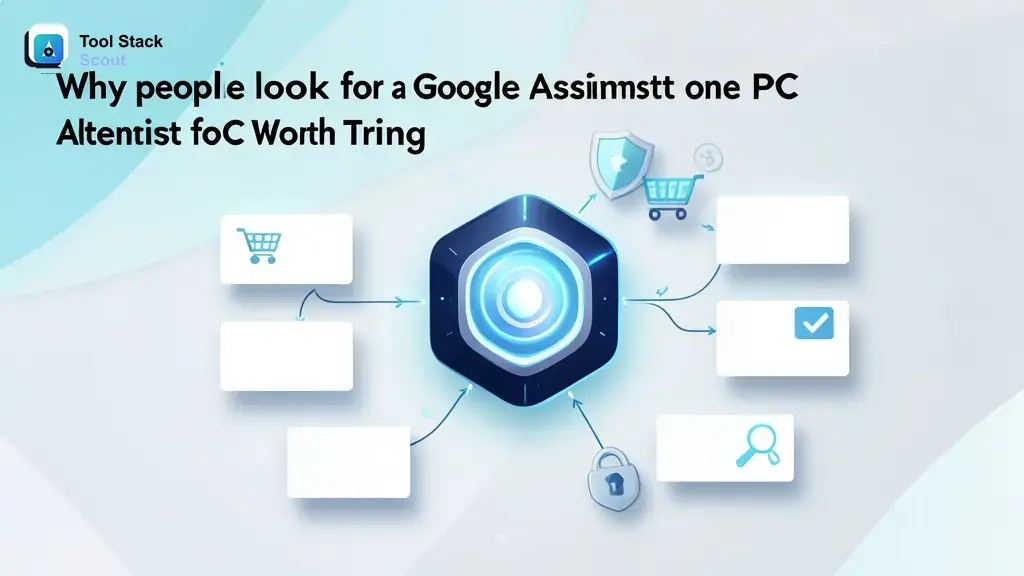
Why people look for a Google Assistant alternative on PC
Most people are not looking for a desktop assistant just for novelty. They want to set reminders while working, open apps, control music, ask quick questions, manage smart home devices, dictate ideas, or get help writing and researching without constantly switching windows.
On phones and smart speakers, Google Assistant has long been a familiar model for that kind of help. On PC, though, the experience is less straightforward. Depending on your device and setup, you may find web access, unofficial desktop methods, Android emulators, or limited integrations rather than a simple, polished Windows app. That gap is the main reason readers start comparing alternatives.
In practice, there are now two categories to think about. Traditional voice assistants are better for spoken commands, timers, music, and connected devices. Newer AI assistants are often better for writing, summarizing, brainstorming, coding help, and study tasks. If your real goal is desktop productivity, some of the best replacements may not look much like the old smart-speaker model at all.
What to look for in virtual assistants like Google Assistant for PC
Before picking a tool, decide whether you want hands-free control or thinking help. Those are different jobs, and the best PC assistant for one is often not the best for the other.
Voice control matters if you want to speak naturally, launch tasks quickly, or control devices while your hands are busy. Chat-based AI matters more if you spend your day writing emails, summarizing documents, comparing products, planning projects, or asking follow-up questions on screen.
Windows compatibility is the next filter. Some assistants are built into the Microsoft ecosystem, some work mainly through a browser, and some are tied to other hardware ecosystems. Setup friction matters too. A tool you can open quickly from your taskbar is very different from one that needs workarounds, extra apps, or unofficial clients.
Finally, think about your main use case. If you want productivity help on a Windows laptop, prioritize desktop integration and text-based AI support. If you want smart home routines, prioritize voice responsiveness and ecosystem support. If you want a Google-like question-and-answer experience, prioritize familiarity and low-friction access over deep system control. If you want to compare broader assistant categories, our guide to virtual assistants like alexa can help frame the bigger landscape.
The takeaway is simple: start with your dominant workflow, not the brand name. On PC, the most useful assistant is the one you will actually open and use every day.
| Alternative | Best for | Key strength | Watch out for |
|---|---|---|---|
| virtual assistants like google assistant for pc | Users who want a practical shortlist of desktop-friendly assistant options. | Helps you choose by workflow, such as Windows work, smart home control, or Google-style assistance. | There is no single perfect replacement; the best fit changes depending on whether you need voice, chat, or ecosystem integration. |
| Google Assistant | People who specifically want Google-style queries, reminders, and connected Google services. | Familiar assistant behavior for common consumer tasks and Google-oriented habits. | Desktop use on PC can be limited or dependent on unofficial methods rather than a full native Windows experience. |
| virtual assistant | Users who care most about spoken commands, quick actions, and routine-based help. | Hands-free convenience for common tasks and connected-device control. | Many virtual assistants on PC feel narrower for writing, research, and long-form knowledge work. |
| AI assistant | Students, office workers, creators, and knowledge workers who mostly interact by typing. | Better at drafting, summarizing, brainstorming, studying, and answering follow-up questions. | Some AI assistants are less natural for always-on voice use or direct smart home control. |
| voice assistant | Home office users who want hands-free help while multitasking at their desk. | Fast command-based interaction for timers, music, reminders, and connected devices. | Voice-first tools can still feel limited on desktop when you need deeper file handling or longer work output. |
Best virtual assistants like Google Assistant for PC
The tools below are the most relevant choices if your goal is to recreate some version of the Google Assistant experience on desktop while being realistic about what each one does best. For a broader look at how major assistants stack up, see our Siri vs Alexa vs Google Assistant comparison.
1. Microsoft Copilot
For many Windows users, Microsoft Copilot is the most practical starting point because it fits naturally into a PC workflow. It is less about smart-speaker-style commands and more about helping you think and work faster on desktop. If you want the broader workflow context behind that difference, our guide to AI assistants vs. agents explains where responsive assistants fit compared with more autonomous tools.
Where it stands out is daily productivity. If you are writing a difficult email, summarizing meeting notes, comparing product options, outlining a report, or asking follow-up questions while browsing, Copilot usually feels more useful on a laptop than a classic voice assistant. It is especially well suited to office workers, remote teams, and general Windows users who spend most of the day in documents and browser tabs.
It is not the closest emotional match to Google Assistant if what you want is a voice-first home helper. But if your real need is desktop help rather than speaker-style conversation, Copilot often gives the best return with the least setup.
The decision rule here is straightforward: start with Copilot if your PC is mainly a work machine.
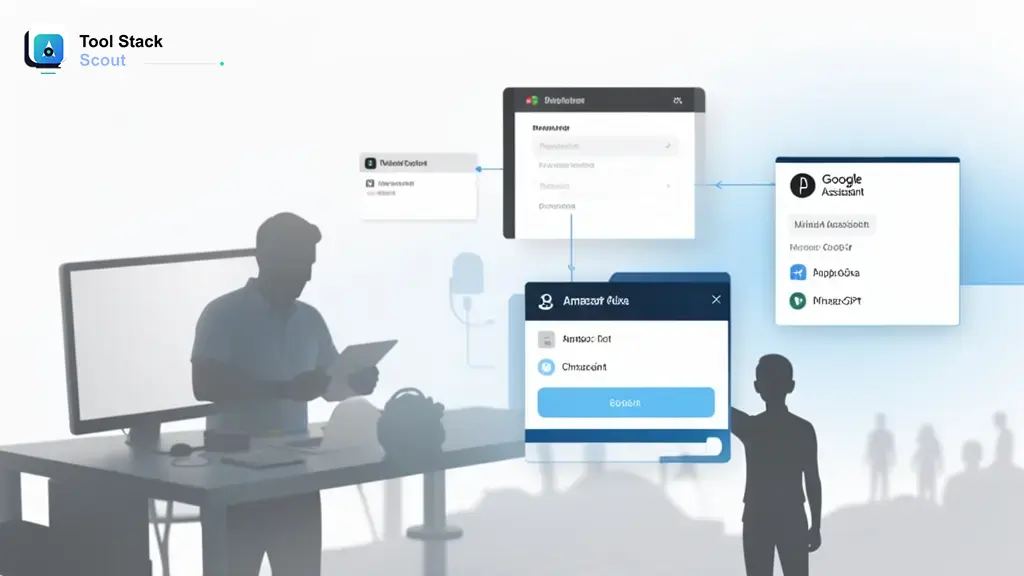
2. Amazon Alexa on PC
Alexa makes the strongest case if your idea of a virtual assistant is still primarily voice-first. For users with Echo devices, smart lights, plugs, routines, or a broader Amazon-centered home setup, Alexa can feel more like a true assistant than a chat window does. If you are comparing the wider voice-first landscape, our roundup of Siri-like AI assistants gives another useful benchmark for desktop and mobile users.
On PC, its value is less about writing and more about convenience. You can use it for spoken reminders, music, smart home routines, and quick voice interactions while working at your desk. If you already rely on Alexa in other rooms, bringing that same assistant style to a Windows machine can be a lower-friction path.
The trade-off is that Alexa is not usually the best choice for deeper research, long writing tasks, coding support, or document-heavy workflows. It works best when your question is short and your action is simple.
Choose Alexa if you want your PC assistant to behave more like a smart speaker than a work copilot.
3. ChatGPT
ChatGPT is not a traditional system-level voice assistant, but it is one of the most useful desktop alternatives if your main goal is getting help with thinking, writing, learning, or problem-solving. For many readers, that is what they actually mean when they say they want a Google Assistant-like tool on PC.
For writing workflows, ChatGPT is especially practical. You can ask it to draft an email in a formal tone, rewrite a proposal in plain English, turn rough bullet points into a clean memo, or generate several subject-line options in seconds. For coding, it can explain errors, outline logic, suggest example code, and help you reason through bugs. For study, it can quiz you, simplify a complex concept, or build a study guide from your notes. For long documents, it is useful for extracting key themes, turning a dense text into a quick brief, or helping you decide what to read first. For readers thinking beyond personal use, our guide to the best AI virtual assistant for small business in 2026 shows how the same strengths translate into business workflows.
Where ChatGPT is better than a classic voice assistant is depth. You can keep asking follow-up questions, change the format, and push toward a more finished output. Where it is weaker is direct desktop control and always-ready hands-free use.
Pick ChatGPT if your biggest pain point is not controlling your PC, but getting through mental work faster.
4. Google Assistant via browser or unofficial desktop methods
If what you want is specifically Google Assistant on a PC, there are usually workarounds rather than a simple official desktop path. Some users try browser-based methods, Android emulators, or unofficial desktop clients to recreate the experience.
This can make sense if you are deeply attached to Google’s assistant style, use Google services heavily, or mostly want occasional desktop access without changing ecosystems. It may also feel more familiar for users who do not want to learn a different assistant from scratch.
The downside is predictability. Setup can take longer, support can change, and the experience may feel less polished than a built-for-PC option. If reliability matters more than familiarity, most users are better off choosing a desktop-native alternative instead.
Only take this route if Google-specific familiarity matters more to you than simplicity.
5. Siri for Apple ecosystem users who also work on PC
Siri is not a natural first recommendation for a Windows-first user, but it can still matter if your digital life already revolves around Apple devices. If you use an iPhone, iPad, or Mac alongside a Windows PC, Siri may remain your preferred assistant for reminders, messages, and device-linked tasks, even if your PC is not the center of that interaction.
In other words, Siri is less a PC assistant and more an ecosystem assistant that follows you across devices. That makes it a reasonable alternative for mixed-device households, but not the strongest answer for someone seeking a true Windows desktop assistant.
Choose Siri only if your assistant habits already live inside Apple’s ecosystem.
6. Cortana-style expectations, now replaced by newer Windows assistants
Some searchers still mean something like old Cortana when they look for a Google Assistant alternative on PC. That matters because the desktop assistant landscape has shifted away from the earlier voice-command model toward newer AI copilots and hybrid productivity tools.
If your expectation is an always-there Windows helper that can do a bit of everything, today’s choices are more specialized. That is why picking by use case matters more than chasing a one-to-one replacement.
This is less a tool choice than a mindset reset: modern PC assistants tend to be strongest in one lane rather than every lane.
7. Other browser-based AI assistants
There are also broader AI assistants available through the browser that may suit users who do not care much about voice at all. These tools can be excellent for research, outlining, summarization, and question-driven work, especially if your day is mostly keyboard-based.
They become good alternatives when you want faster thinking support on desktop rather than smart-home or spoken-command behavior. If that is your priority, you may also want to explore the broader AI Tools category for adjacent options.
These are best treated as support options if your main goal is AI help rather than a classic assistant feel.
The practical takeaway from this list is that most PC users should choose between Copilot, Alexa, and ChatGPT first. Everything else is more niche, more ecosystem-dependent, or more workaround-heavy.
Quick comparison: which PC assistant is best for different needs?
If you want the shortest possible answer, use this decision guide.
- Choose Microsoft Copilot if you want the easiest starting point for Windows productivity and day-to-day desktop help.
- Choose Amazon Alexa if you care most about voice commands, smart speakers, and connected home routines.
- Choose ChatGPT if you mostly want help writing, coding, studying, or working through long information.
- Try Google Assistant workarounds only if the Google-style experience matters more to you than simplicity or reliability.
- Keep Siri in the picture only if your real assistant already lives in the Apple ecosystem.
For most beginners, the simplest rule is this: use Copilot for Windows tasks, Alexa for spoken home control, and ChatGPT for thought-heavy work. That will fit more real-world setups than searching for a perfect Google Assistant clone on PC.
Can a PC virtual assistant do the same things as Google Assistant?
Partly, yes. Most desktop assistants can handle at least some mix of quick questions, reminders, writing help, summarization, music-related commands, or smart home interaction. The main difference is that very few deliver all of those jobs equally well in one place.
Classic voice assistants still do best with short commands. Ask for a timer, a device action, a quick answer, or a routine trigger, and they usually feel natural. AI assistants do better when the task has layers: summarize this article, rewrite this paragraph, explain this code, compare these options, or turn these notes into a plan.
The desktop experience still feels limited when you expect phone-like or speaker-like assistant behavior combined with deeper PC control. On Windows, the landscape is more fragmented. Some tools are strong at conversation but weak at system actions. Others are strong at ecosystem control but less useful for serious work output.
So the answer is not yes, completely. It is yes, if you choose the assistant that matches the exact task.
How to choose the right assistant for your setup
For home office users
If you spend all day on a laptop handling emails, notes, spreadsheets, tabs, and meetings, prioritize a tool that reduces mental workload. Copilot or ChatGPT will usually help more than a traditional voice assistant because they are stronger at drafting, summarizing, and clarifying information. For small business owners juggling client work, our roundup of the best AI virtual assistant for small business covers tools that fit team-based workflows.
For smart home users
If your main goal is to say a command from your desk and have lights, music, routines, or devices respond, Alexa is often the more natural fit. It behaves more like what people usually mean by assistant in a home environment. If you are setting up a full smart home system, our guide to the best virtual assistant for home automation covers the top contenders in more detail.
For students and researchers
If you need to break down readings, generate practice questions, build study outlines, or compare viewpoints, ChatGPT is typically the stronger desktop choice. It is especially useful when you need follow-up questions rather than one-shot answers.
For writers and creators
If your work involves drafting, repurposing, outlining, or brainstorming, use an AI-first assistant before a voice-first one. ChatGPT is usually the better fit for creative iteration, while Copilot can be the easier fit if your work stays closely tied to Windows and Microsoft tools.
For users who specifically want Google on desktop
If familiarity matters more than polish, you can explore browser or unofficial methods for Google Assistant. Just go in expecting trade-offs. This route makes the most sense only when Google-like behavior is a hard requirement.
The decision rule here is practical: choose based on the job you repeat most often. The assistant you use ten times a day for one high-value task is better than the assistant that sounds impressive but does not fit your routine.
FAQ about virtual assistants like Google Assistant for PC
Is there anything like Google Assistant for Windows?
Yes, but not usually as a perfect one-to-one replacement. Microsoft Copilot is often the easiest Windows-friendly alternative for productivity, while Alexa is a stronger choice for voice-first smart home use. Google-style desktop access may also be possible through web or unofficial methods, but that usually comes with more setup and more uncertainty.
What is the best AI assistant for PC?
If by best you mean the most useful for writing, summarizing, research, and problem-solving, ChatGPT is one of the strongest options. If you want something that feels more naturally tied to a Windows workflow, Copilot is often the better starting point. The better choice depends on whether you need deep thinking help or tighter desktop context.
Is there an AI voice assistant for PC?
Yes. Alexa remains one of the clearest voice-assistant options for PC users, especially for smart home tasks and quick spoken commands. Some AI assistants also offer voice interaction, but many are still strongest when used through typed prompts rather than fully hands-free desktop control.
Can you use Google Assistant on a desktop browser?
Sometimes, but the experience is not always the same as using Google Assistant on a phone or smart speaker. Depending on your setup, you may find browser access, emulator-based options, or unofficial desktop methods. These can work for specific users, but they are usually less straightforward than choosing a PC-native alternative.
Which assistant is best for long documents on PC?
For long reports, study packets, transcripts, or research-heavy material, ChatGPT is usually the stronger choice because it is built for follow-up questions, summarization, restructuring, and explanation. Traditional voice assistants are much less useful for this kind of work.
Which assistant is best for coding on PC?
For coding help, AI assistants tend to be more useful than classic voice assistants. ChatGPT is generally a strong pick if you want help understanding errors, planning logic, generating examples, or debugging ideas in plain language. Copilot can also make sense for developers who want a Windows-friendly workflow and AI assistance tied closely to desktop work.
Final verdict
If you want a real decision instead of a tie, here it is: most Windows users should start with Microsoft Copilot, not a Google Assistant workaround. It is usually the most practical fit for everyday desktop work.
Choose Alexa instead if your top priority is voice-first control and smart home routines. Choose ChatGPT instead if your top priority is writing, coding, study support, or making sense of long documents. Only chase Google Assistant on PC through browser or unofficial routes if the Google-specific experience matters enough to justify extra friction.
That is the clearest rule: pick the assistant based on your most repeated task. On PC, the best replacement for Google Assistant is not the one that looks the most similar. It is the one that saves you the most time in the way you actually use your computer.